
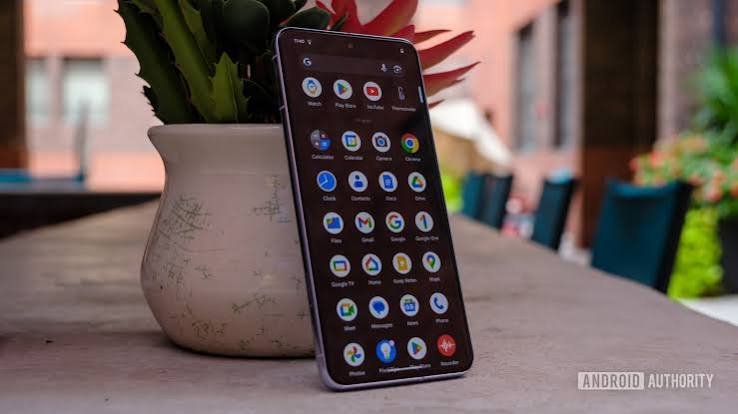
Smartphones have become an essential part of everyday life.
We use them to communicate with friends and family, check email, manage bank accounts, shop online, store photographs, access work files, navigate unfamiliar places, and connect with social media. A modern smartphone can contain more personal information than many people realize.
That makes smartphones attractive targets for cybercriminals.
A stolen password, malicious application, phishing message, or outdated operating system can potentially put personal information at risk. The good news is that protecting your smartphone doesn’t require advanced technical knowledge.
A few simple habits can make a significant difference.
Keeping your operating system and apps updated, downloading applications from trusted sources, using a strong screen lock, enabling multi-factor authentication, reviewing app permissions, avoiding suspicious links, and being cautious on public Wi-Fi are all important parts of smartphone security.
In this guide, we’ll explain how to keep your smartphone and apps safe from cyber threats, including the most common risks and the practical steps you can take to protect your device and personal information.
Why Smartphone Security Matters
Your smartphone is more than a phone.
It may contain:
- Personal photographs
- Emails
- Text messages
- Contacts
- Banking applications
- Shopping accounts
- Social media accounts
- Saved passwords
- Work documents
- Location information
- Payment information
- Health and fitness data
If someone gains access to your device or accounts, they could potentially access information that affects many areas of your life.
Smartphone security is therefore not just about protecting a device.
It’s about protecting your digital identity.
1. Keep Your Smartphone Updated
One of the simplest and most important security habits is keeping your phone’s operating system updated.
Software updates can include security fixes that address vulnerabilities discovered by researchers or exploited by attackers.
The same applies to applications.
If your phone or apps are significantly out of date, you may be missing important security improvements.
Turn On Automatic Updates
Where practical, enable automatic updates for your operating system and applications.
This reduces the chance that you’ll forget to install an important security update.
Don’t ignore update notifications indefinitely.
An update may contain more than a new feature or visual redesign. It could contain a critical security fix.
2. Download Apps From Trusted Sources
Be careful about where you get applications.
Whenever possible, download apps through your device’s official app marketplace or directly from a legitimate developer.
Avoid installing applications from random websites, advertisements, pop-ups, or unknown links.
A malicious application may attempt to:
- Steal information
- Display unwanted advertisements
- Access files
- Track activity
- Capture credentials
- Send unauthorized messages
- Install additional malicious software
Before downloading an unfamiliar application, research it first.
3. Check the Developer Before Installing an App
Two applications can have almost identical names and icons.
One may be legitimate.
The other may be designed to trick users.
Before installing an unfamiliar app, look at the developer name, reviews, download information, update history, and requested permissions.
If something doesn’t look right, don’t install it.
Be especially careful with applications that imitate popular banking, shopping, social media, or cryptocurrency services.
4. Review App Permissions
Apps often request permission to access certain features of your smartphone.
These may include:
- Camera
- Microphone
- Contacts
- Location
- Photos
- Files
- Bluetooth
- Notifications
Some permissions are necessary for an app to work.
For example, a navigation application may need location access.
A video-chat application may need access to the camera and microphone.
But not every app needs every permission.
Ask yourself:
Does this app really need access to this information?
If the answer is no, consider denying the permission.
5. Don’t Give Apps More Access Than They Need
Giving an app unnecessary permissions can increase your privacy and security risks.
For example, a simple flashlight application shouldn’t need access to your contacts, messages, or extensive personal files.
Review permissions regularly.
An app may change its functionality over time, so permissions that seemed reasonable when you first installed it may no longer be necessary.
6. Use a Strong Screen Lock
Your phone’s screen lock is your first physical security barrier.
Use a strong PIN, password, fingerprint, or facial authentication feature supported by your device.
Avoid extremely predictable PINs such as:
- 1234
- 0000
- 1111
- Your birth year
A stronger screen lock can make unauthorized access more difficult if your phone is lost or stolen.
7. Turn On Find My Device Features
Most modern smartphones offer features that can help you locate, lock, or erase a lost device.
Make sure the relevant device-finding feature is enabled.
This can be extremely useful if you accidentally leave your phone in a restaurant, taxi, airport, hotel, or another public location.
Some services also allow you to remotely lock the phone or erase its data.
Set this up before you need it.
8. Protect Your Important Accounts
Your smartphone may automatically keep you signed in to dozens of services.
That means protecting your accounts is just as important as protecting the device itself.
Use strong, unique passwords.
Enable multi-factor authentication.
Review login activity.
Remove old devices from your accounts.
Pay particular attention to:
- Banking
- Cloud storage
- Social media
- Shopping
- Work accounts
If someone gains access to your email, they may be able to reset passwords for other accounts.
9. Enable Multi-Factor Authentication
Multi-factor authentication adds another security layer to your accounts.
Instead of relying only on a password, the service asks for additional verification.
This could involve:
- An authenticator app
- A security key
- A device approval
- A verification code
- A fingerprint
- Facial recognition
The FTC recommends enabling two-factor authentication on accounts that support it, particularly for important services such as email, financial accounts, and social media. (consumer.ftc.gov)
10. Be Careful With Text Messages
Smartphones make phishing especially dangerous because people tend to read text messages quickly.
A message might say:
“Your package could not be delivered.”
Or:
“Your bank account has been locked.”
Or:
“Your payment failed. Update your information now.”
These messages may contain links designed to steal your information.
Don’t click unexpected links simply because the message looks official.
Instead, open the company’s legitimate app or website yourself.
11. Watch Out for Smishing
SMS phishing, commonly called smishing, uses text messages to trick people into providing personal information or clicking malicious links.
Smishing messages may pretend to come from:
- Banks
- Delivery companies
- Government agencies
- Employers
- Online retailers
- Streaming services
The same rule applies:
Stop, check, and think before you click.
If you weren’t expecting the message, verify it independently.
12. Don’t Share Verification Codes
A scammer may contact you and claim to be from a company you use.
They might say:
“We need the code that was just sent to your phone.”
Don’t provide it.
That code may be protecting your account.
If you give it away, you may unintentionally help someone bypass an important security measure.
No legitimate reason to share an authentication code with an unexpected caller should be assumed.
13. Be Careful With Public Wi-Fi
Public Wi-Fi can be convenient when you’re at:
- Airports
- Hotels
- Cafes
- Restaurants
- Libraries
- Shopping centers
But don’t automatically trust every network.
A criminal could potentially create a network with a name similar to a legitimate one to trick users into connecting.
When using public Wi-Fi, avoid unnecessary sensitive activities and verify the network name before connecting.
For particularly sensitive transactions, consider using your cellular connection or another trusted network.
14. Turn Off Automatic Connection to Unknown Networks
If your phone automatically connects to available Wi-Fi networks, you may unknowingly connect to a network you don’t recognize.
Review your Wi-Fi settings.
Remove old networks you no longer use.
Avoid automatically joining unknown networks.
This small change can reduce unnecessary exposure.
15. Be Careful With Bluetooth
Bluetooth is useful for connecting:
- Headphones
- Speakers
- Cars
- Keyboards
- Smartwatches
- Other devices
But you should still manage Bluetooth carefully.
Turn it off when you don’t need it if that’s practical for you.
Avoid accepting unexpected connection requests.
Keep your device’s software updated.
16. Use Caution With QR Codes
QR codes are everywhere.
You can find them on menus, advertisements, posters, packages, parking meters, and payment terminals.
But scammers can also use QR codes to send people to malicious websites.
After scanning a QR code, check the destination carefully before entering passwords, financial information, or other sensitive data.
A QR code should not automatically be trusted simply because it looks professional.
17. Don’t Install Apps From Suspicious Links
You may receive a message saying:
“Download this security update now.”
The message provides an app download link.
Don’t install it.
Operating system updates should come through your phone’s normal update system.
Similarly, legitimate app updates should generally come through the official app marketplace or the app’s standard update mechanism.
Unexpected download links are a common warning sign.
18. Be Careful With Fake Security Warnings
A website may suddenly display a message claiming:
“Your phone has been infected!”
It may tell you to download a security application immediately.
Don’t panic.
Web pages can display fake warnings designed to scare you into installing unwanted software.
Close the page.
Use your phone’s legitimate security settings and trusted applications instead.
19. Avoid Unnecessary Apps
Every application you install creates another piece of software that may have access to your device.
That doesn’t mean you should avoid apps.
It simply means you should remove applications you no longer need.
Periodically review your installed apps.
Ask:
Do I still use this?
If the answer is no, consider deleting it.
20. Review Your App List Regularly
You might be surprised by how many apps you’ve installed over the years.
Some may have been used once and forgotten.
Check your phone every few months.
Remove applications that are:
- No longer used
- Suspicious
- Unsupported
- Unnecessary
- From unknown developers
Reducing the number of applications on your phone can also simplify privacy management.
21. Back Up Your Smartphone
A backup can help you recover important information if your device is lost, stolen, damaged, or reset.
Back up important:
- Photos
- Contacts
- Documents
- Messages
- Other essential data
Make sure you understand where your backups are stored and how they’re protected.
A backup isn’t just about cybersecurity.
It’s also useful for everyday accidents.
22. Don’t Root or Jailbreak Your Phone Without Understanding the Risks
Modifying the operating system can provide additional control over a smartphone.
However, it can also remove or weaken certain security protections.
If you aren’t an advanced user who understands the consequences, modifying the operating system may create unnecessary risks.
For most people, using the standard security configuration is the simpler choice.
23. Be Careful With Charging Stations
Public charging can be useful when your battery is running low.
However, when possible, consider using your own charger and a trusted power source.
If you’re traveling, carrying a power bank can reduce the need to use unfamiliar charging equipment.
The safest approach is to avoid connecting your phone to unknown devices or computers.
24. Don’t Leave Your Phone Unattended
Physical security still matters.
Don’t leave your unlocked smartphone sitting unattended in public.
A criminal doesn’t necessarily need sophisticated hacking tools if they can simply access an unlocked device.
Use automatic screen locking.
Keep your phone with you.
25. Protect Your SIM and Mobile Account
Your phone number may be connected to important accounts.
In some circumstances, criminals may attempt to take control of a phone number through social engineering or SIM-related fraud.
Protect your mobile-provider account with a strong password and any additional security features the provider offers.
If your phone suddenly loses cellular service unexpectedly, investigate promptly, particularly if you suspect unauthorized account activity.
26. Be Careful With Mobile Banking
Mobile banking is convenient, but banking applications contain extremely sensitive information.
Use the official banking application.
Avoid downloading banking apps through links sent by strangers.
Enable available security features.
Don’t provide banking credentials through text messages, social media, or unexpected calls.
If you receive an unusual banking alert, open your bank’s official app directly rather than clicking the link in the message.
27. Protect Your Photos and Personal Files
Smartphones often contain years of personal photographs and documents.
Review which applications have access to your photos and files.
Don’t give broad access to applications that don’t need it.
When sharing a photograph publicly, remember that images can sometimes reveal personal details such as locations, addresses, documents, or other sensitive information.
Think before posting.
28. Be Careful With Location Sharing
Location information can reveal where you live, work, travel, or spend time.
Review which applications have location access.
If an app doesn’t need your precise location, consider limiting its access where your device allows it.
Also consider what location information you publicly share through social media.
29. Keep Your Browser Secure
Your smartphone browser is another important part of your digital security.
Keep it updated.
Be cautious about suspicious websites and pop-ups.
Don’t install unknown browser extensions or profiles.
Don’t enter passwords into websites simply because a link appears in a message.
When possible, navigate directly to important websites.
30. Use a Reputable Security App When Appropriate
Modern smartphones include built-in security protections.
Depending on your device, additional security software may also be useful.
However, be careful when choosing security applications.
Ironically, scammers sometimes create fake security apps designed to scare users into paying money or granting unnecessary permissions.
Research the developer before installing security software.
31. Watch for Signs Your Phone May Be Compromised
No single symptom proves that a phone has been hacked.
However, unusual behavior deserves attention.
Potential warning signs can include:
- Unexpected applications
- Unusual account-login alerts
- Sudden changes to settings
- Unexplained charges
- Unusual messages sent from your account
- Frequent unexpected pop-ups
- Battery or data usage that changes dramatically without explanation
If something seems wrong, investigate rather than ignoring it.
32. Don’t Ignore Security Notifications
Your smartphone and apps may send warnings about:
- New logins
- Password changes
- Security settings
- Suspicious activity
- Software updates
Don’t automatically dismiss them.
If you receive an alert about a login you don’t recognize, investigate immediately.
33. Secure Your Cloud Accounts
Your smartphone may automatically synchronize photos, contacts, documents, and other information with cloud services.
This is convenient, but it also means cloud security matters.
Protect your cloud account with:
- A strong unique password
- MFA
- Updated recovery information
- Login monitoring
Your cloud account may contain a complete backup of your digital life.
34. Be Careful With AI Apps
AI applications are increasingly common on smartphones.
People use them for writing, research, image creation, productivity, education, and communication.
But avoid entering highly sensitive information into AI applications unless you understand how the service handles that information.
Don’t casually upload:
- Passwords
- Financial records
- Confidential work documents
- Identification documents
- Private conversations
Always consider whether the information is necessary for the task.
35. Teach Everyone in Your Family Basic Smartphone Security
Smartphone security isn’t only for technical users.
Everyone who uses a smartphone should understand basic risks.
Teach family members to:
- Avoid suspicious links.
- Use screen locks.
- Install updates.
- Avoid unknown apps.
- Protect passwords.
- Enable MFA.
- Question unexpected requests for money or personal information.
A single compromised account can sometimes affect an entire household.
Common Smartphone Security Mistakes
Many smartphone security problems come from simple mistakes rather than advanced hacking.
Avoid:
- Using a weak screen PIN.
- Ignoring updates.
- Downloading unknown apps.
- Giving apps unnecessary permissions.
- Clicking suspicious text-message links.
- Sharing verification codes.
- Leaving your phone unlocked.
- Using the same password everywhere.
- Connecting to unknown Wi-Fi networks.
- Ignoring security alerts.
- Keeping apps you no longer use.
- Entering sensitive information into suspicious websites.
A Simple Smartphone Security Checklist
Use this checklist to strengthen your phone’s security:
Device Protection
- Use a strong screen lock.
- Enable device-finding features.
- Keep your operating system updated.
- Back up important information.
- Don’t leave your device unlocked.
App Security
- Download apps from trusted sources.
- Check the developer.
- Review permissions.
- Remove unused apps.
- Keep applications updated.
Account Security
- Use strong, unique passwords.
- Enable MFA.
- Protect your email account.
- Review login activity.
- Never share verification codes.
Online Safety
- Avoid suspicious links.
- Be careful with QR codes.
- Verify unexpected messages.
- Be cautious with public Wi-Fi.
- Don’t install software from unknown sources.
What to Do If Your Smartphone Is Lost or Stolen
If your phone disappears, act quickly.
First, try to locate it using the device’s built-in tracking service.
If you can’t recover it, remotely lock the device if possible.
If necessary, remotely erase its contents.
Change passwords for important accounts, especially if you think someone may have accessed the phone while it was unlocked.
Contact your mobile provider if you believe your account or phone number may be at risk.
Also report theft to the appropriate authorities when necessary.
What to Do If You Install a Suspicious App
If you accidentally install an application you don’t trust, don’t panic.
Start by disconnecting from the internet if you believe the app is actively communicating with suspicious services.
Remove the application if appropriate.
Review the permissions it was granted.
Check your accounts for unusual activity.
Change passwords if you entered credentials into the suspicious application.
Make sure your operating system and security tools are updated.
If you believe sensitive information was stolen, take additional steps to protect those accounts.
The Future of Smartphone Security
Smartphone security will continue to evolve.
Future devices are likely to rely increasingly on:
- Biometrics
- Passkeys
- AI-powered threat detection
- Hardware security
- Encrypted communications
- Automatic security updates
- Behavioral detection
These technologies may make smartphones safer and easier to use.
But technology alone won’t solve every problem.
Human behavior will remain important.
A sophisticated security system can still be undermined if someone willingly gives a scammer their password or verification code.
That’s why digital awareness will continue to be an important part of cybersecurity.
Conclusion
Your smartphone is one of the most important devices in your digital life.
It contains personal information, financial details, photographs, conversations, account credentials, and access to dozens of online services.
Protecting it doesn’t require complicated technical knowledge.
Start with the basics.
Keep your smartphone and apps updated.
Use a strong screen lock.
Download apps from trusted sources.
Review app permissions.
Enable multi-factor authentication.
Protect your passwords.
Be cautious with text messages, QR codes, and suspicious links.
Avoid unnecessary public Wi-Fi risks.
Back up important information.
Remove applications you no longer use.
Monitor your accounts for unusual activity.
Most importantly, don’t let convenience replace caution.
Cyber threats are constantly evolving, but good smartphone security habits can help you stay one step ahead.
Your phone is designed to make life easier.
With a few smart security practices, you can enjoy that convenience while doing much more to protect your personal information.
Frequently Asked Questions About Smartphone Security
How can I make my smartphone more secure?
Use a strong screen lock, keep the operating system updated, install apps only from trusted sources, review app permissions, enable MFA on important accounts, and back up important information.
Should I update my phone regularly?
Yes. Operating-system updates and app updates can include security fixes. Keeping your software updated helps protect against known vulnerabilities.
Is it safe to download apps from outside the official app store?
Installing apps from unknown sources can increase security risks. For most users, it’s safer to use the official app marketplace or the legitimate developer’s website.
How do I know whether an app is safe?
Check the developer, reviews, update history, download information, requested permissions, and whether the app comes from a trusted source. Be suspicious of applications that request unnecessary access.
Should every app have access to my location?
No. Only give location access when it’s necessary for the app’s functionality. Review location permissions regularly and use more limited access when your device provides that option.
Can text messages contain viruses or scams?
Yes. Text messages can contain phishing links and other scams designed to steal personal information or account credentials. Treat unexpected messages with caution.
What is smishing?
Smishing is phishing carried out through SMS or text messages. Scammers may use fake delivery alerts, banking warnings, account notices, or other urgent messages to trick users.
Should I click a link from my bank’s text message?
If you weren’t expecting the message, it’s safer to avoid the link. Open your bank’s official app or website directly and check for notifications there.
Is public Wi-Fi safe on a smartphone?
Public Wi-Fi can be useful, but you should be cautious. Verify the network, avoid unnecessary sensitive activities, and consider using cellular data for particularly sensitive tasks.
Should I turn off Bluetooth?
You don’t necessarily need to keep Bluetooth off all the time. However, avoid accepting unexpected connection requests and keep your smartphone software updated.
What should I do if my phone is stolen?
Use your device’s tracking service to locate or lock it if possible. If necessary, remotely erase the device, contact your mobile provider, and change important account passwords.
Can a smartphone be hacked?
Smartphones can be targeted through malicious apps, phishing, software vulnerabilities, stolen credentials, and other techniques. Keeping the device updated and practicing good security habits can reduce many risks.
Should I use a mobile antivirus app?
Modern smartphones already include built-in security protections. Additional security software may be useful in some situations, but research any security application carefully before installing it because fake security apps can also exist.
How can I protect my banking app?
Use the official banking application, keep your phone updated, enable available security features, use MFA where available, and never provide banking credentials through unexpected messages or calls.
Can AI apps affect smartphone privacy?
Potentially. AI apps may process information you provide to them. Before uploading confidential or sensitive information, review the service’s privacy practices and consider whether sharing that information is necessary.
How often should I check my smartphone’s security settings?
It’s a good idea to review them periodically, especially after installing many new apps, changing devices, receiving suspicious security alerts, or noticing unusual activity.
What is the most important smartphone security tip?
There isn’t one single solution. A combination of software updates, strong authentication, trusted apps, careful permission management, phishing awareness, and secure account practices provides much stronger protection than relying on any one measure.